To rename a table in phpMyAdmin, select the database then the table, open Operations and enter the new name. The data remains in the table, but queries using the old name must be updated. Back up the database before making this change.
Prepare for the rename
Export the table or the database, note the current name and identify scripts that use it. Choose a new available name that is simple and contains no spaces, for example commandes_archive. Allow for a suitable maintenance window if the site uses this table continuously.
For WordPress, do not rename a standard table in isolation to change the site prefix. This can make its content or users inaccessible. That operation requires a separate procedure.
Step 1: select the database and the table
- Open cPanel, then phpMyAdmin.
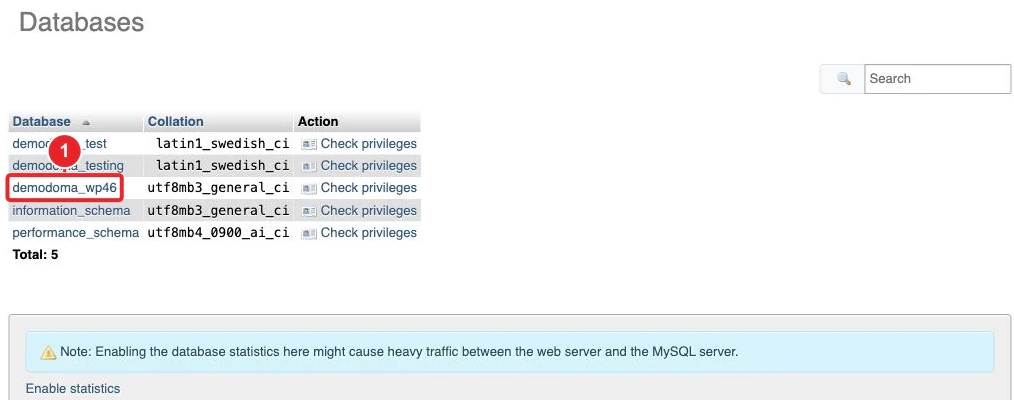
- Select the relevant database in the navigation pane.
- Click the name of the table to be renamed. Check its columns to avoid modifying a table with a similar name.
Step 2: use the Operations tab
- In the table view, open Operations / Operations. On a small screen, some tabs are located in an overflow menu.
- Locate the table options and the rename field, often labeled Rename table to.
- Enter only the new name, then confirm with the associated button, usually Go / Execute.
- Check the result message and the name shown in the navigation.
If phpMyAdmin reports a permission issue, a name already in use, or a dependency, read that message before retrying. Do not delete the existing table to bypass the error.
Alternative: a simple SQL query
If you are comfortable with SQL, the SQL tab of the correct database allows you to run this statement after replacing the example names:
RENAME TABLE `ancienne_table` TO `nouvelle_table`;This command renames the table; it does not copy the data into a second table. Do not execute it in addition to the graphical operation if the rename has already succeeded.
Verify the application after the rename
Compare the structure and the row count, then test the pages that query the table. Update references in code, automated jobs, and views or procedures that depend on the old name. Permissions defined specifically for a table also deserve checking.
A “table does not exist” error after the change often indicates a remaining reference to the old name. If you cannot update the application immediately, consider reverting to the previous name while accounting for changes made in the meantime.
Additional guide
How to export a database before modifying it?
See also
Reference documentation
Documentation consulted on October 13, 2026. Labels and tools may vary depending on your cPanel version and your hosting options.