File and folder permissions control who can read, write, or execute content on your web hosting account. If set incorrectly, they can expose your site to security risks or break its functionality. Below are three methods to safely change permissions in cPanel:
- Using File Manager (easiest, no coding)
- Using SSH (for advanced users)
- Using Cron Jobs (for scheduled automation)
Table of Contents
Method 1: Using File Manager in cPanel
This is the most beginner-friendly method and requires no coding.
Log into cPanel
In the Files section, click File Manager. It opens a file browser interface.

Navigate through the folders on the left to locate your target file or folder.

Right-click the file or folder.
Select Change Permissions from the context menu.

A pop-up window will appear with checkboxes under three columns: User, Group, and World.
Tick or untick boxes to assign Read (4), Write (2), or Execute (1).
The numeric permission (e.g., 755) will auto-update as you click.
Click Change Permissions to apply.
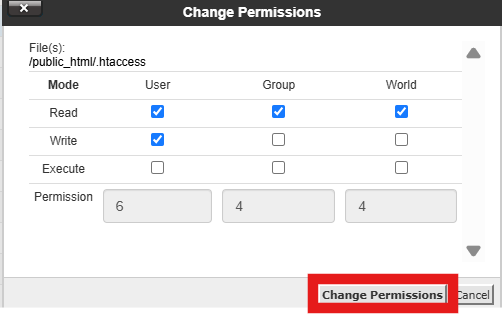
Tip:
- Use 644 for files (owner read/write, everyone else read).
- Use 755 for folders (owner full access, others read/execute).
Method 2: Using SSH
The Terminal tool in cPanel lets you run commands directly from your browser without needing an external SSH client.
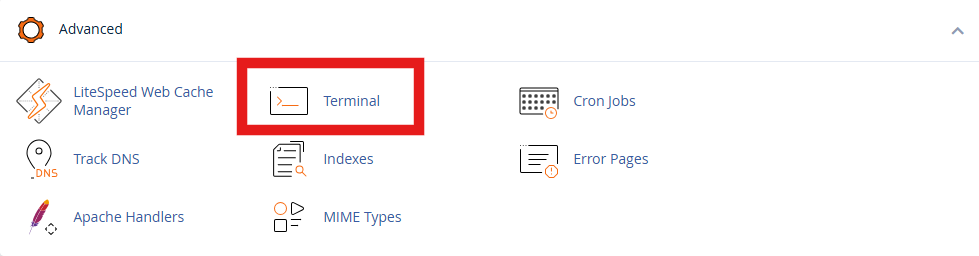
Scroll to the Advanced section, and click on Terminal.
To navigate, use the cd command to go to the folder containing your files. For example: cd public_html
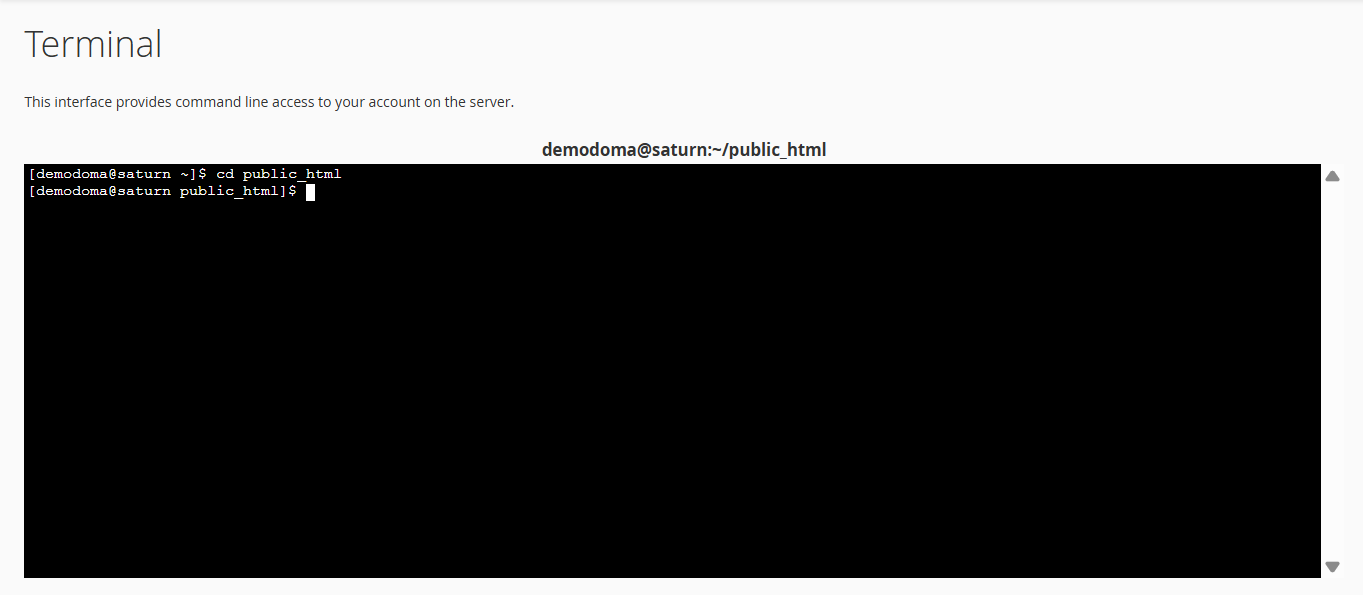
Run one of the commands below to change permissions to 755 for the folders and 644 for the files:
find -type f | xargs chmod 644 ; find -type d | xargs chmod 755 ; chmod 750 . -c
or
find ./ -type f -not -perm 644 -not -name ".ftpquota" -exec chmod 644 -c {} \;; find ./ -type d -not -perm 755 -not -group nobody -exec chmod 755 -c {} \;
Once done, you will see the list of the files and folders for which permissions were corrected.
Be cautious—these commands take effect immediately. Use pwd to confirm your location before running anything.
Method 3: Using Cron Jobs (for Scheduled Permission Changes)
This method is helpful if you want to auto-reset permissions regularly, for example, after deployments or backups.
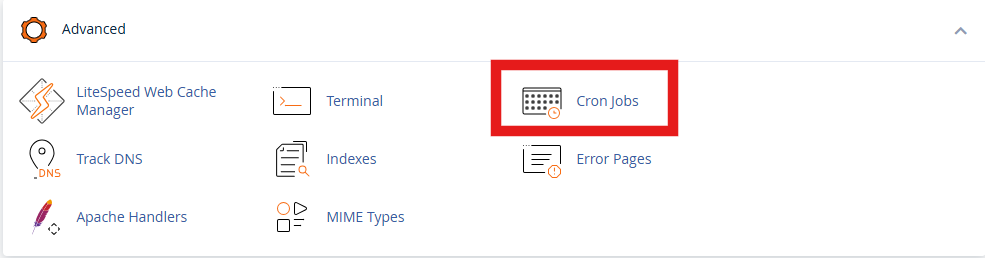
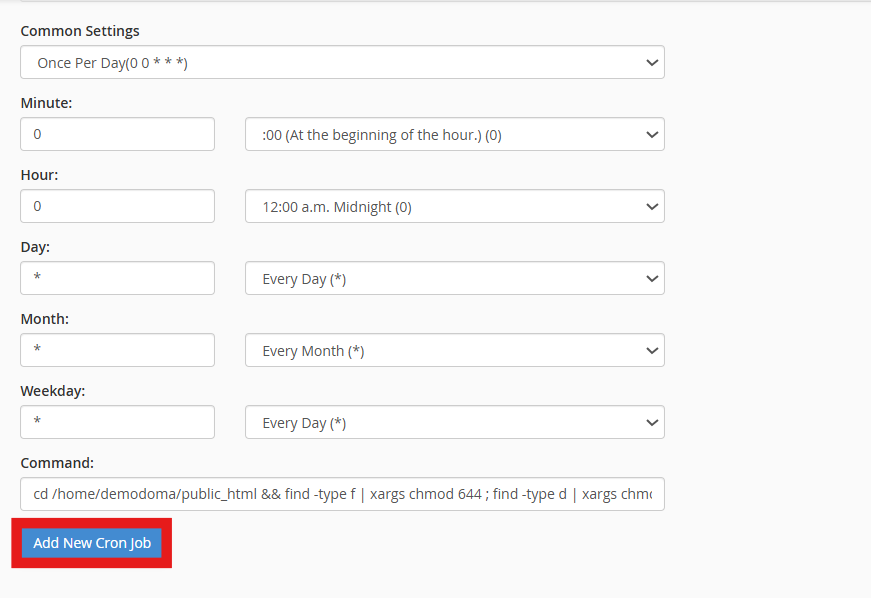
Scroll to the Advanced section in cPanel and click Cron Jobs.
Choose how often the job should run (e.g., once a day).
In the Command field, enter something like:
cd /home/username/public_html && find -type f | xargs chmod 644 ; find -type d | xargs chmod 755 ; chmod 750 . -c
or
cd /home/username/public_html && find ./ -type f -not -perm 644 -not -name ".ftpquota" -exec chmod 644 -c {} \;; find ./ -type d -not -perm 755 -not -group nobody -exec chmod 755 -c {} \;
Replace yourusername with your actual cPanel username.
Click Add New Cron Job. The system will now auto-correct file and folder permissions on your schedule.
Note:
The provided scripts should not be run inside the home directory, such as under /home/username. Many folders in the home directory use custom permission settings. If these permissions are changed to default values, it can lead to security problems, cause conflicts, and may result in cPanel not working correctly. Fixing this issue would require restoring a full cPanel backup.
Final Tips :
- Always back up your site before making permission changes.
- Avoid setting folders to 777 unless absolutely necessary (it gives full access to anyone, which is risky).
- If unsure, stick with File Manager or contact our support
Changing permissions correctly protects your site and ensures it runs smoothly. Choose the method that fits your comfort level and control needs.