To transfer a domain name can mean different things depending on the context, whether the domain is being moved between accounts, between registrars, or between holders (owners). This guide covers all possible cases in detail, including procedures, requirements, and special rules for certain domain extensions (TLDs), such as .MA.
Table of Contents
Understanding Domain Transfers
The process of transferring a domain name from one organization, account, or service provider to another is known as a domain transfer. There are three primary kinds of transfers, depending on your goals:
Transfer Between Holders (Ownership Change)
This type of transfer occurs when the legal owner of the domain name changes, for example, when a domain is sold or assigned to a new individual or company.
-
Example: Selling your domain to another person or transferring ownership to a client.
Important: For some country-code TLDs (ccTLDs) — including .MA — the ownership update process may require official documentation issued by the registry authority (e.g., ANRT in Morocco).
Please also note that the sale or transfer of a .MA domain name for commercial purposes is strictly prohibited, in accordance with the .MA Naming Decision (Article 43).
Check our guide on How to change the registrant of a .ma domain name
Transfer Between Registrars
Your domain name is transferred from one registrar (service provider) to another through this process.
Example : Transferring your domain from Registrar A to Registrar B
Typically, to accomplish this, the domain must be unlocked, an EPP/Auth code must be obtained, and the transfer request must be confirmed via email or a control panel.
Transfer Between Accounts (Same Registrar)
In this kind, a domain is transferred between two accounts under the same registrar without the registrar being altered.
It may happen:
- When ownership shifts (the legal owner of the domain changes), or
- Without a change in ownership (the same owner wishes to combine domains and manages several accounts).
Transfer Between Accounts in Cap Connect : Detailed Scenarios
Case 1: Transfer Between Accounts With Owner Change
When transferring a domain from one account to another and the owner will change, the procedure depends on the TLD type:
Generic TLDs (e.g., .COM, .NET, .ORG)
The procedure for generic top-level domains (gTLDs) is typically simple and fully overseen by the registrar.
The current owner must first update the ownership details directly in their client area before starting the transfer. This guarantees that, prior to the transfer, the domain’s registrant information accurately reflects the new owner.
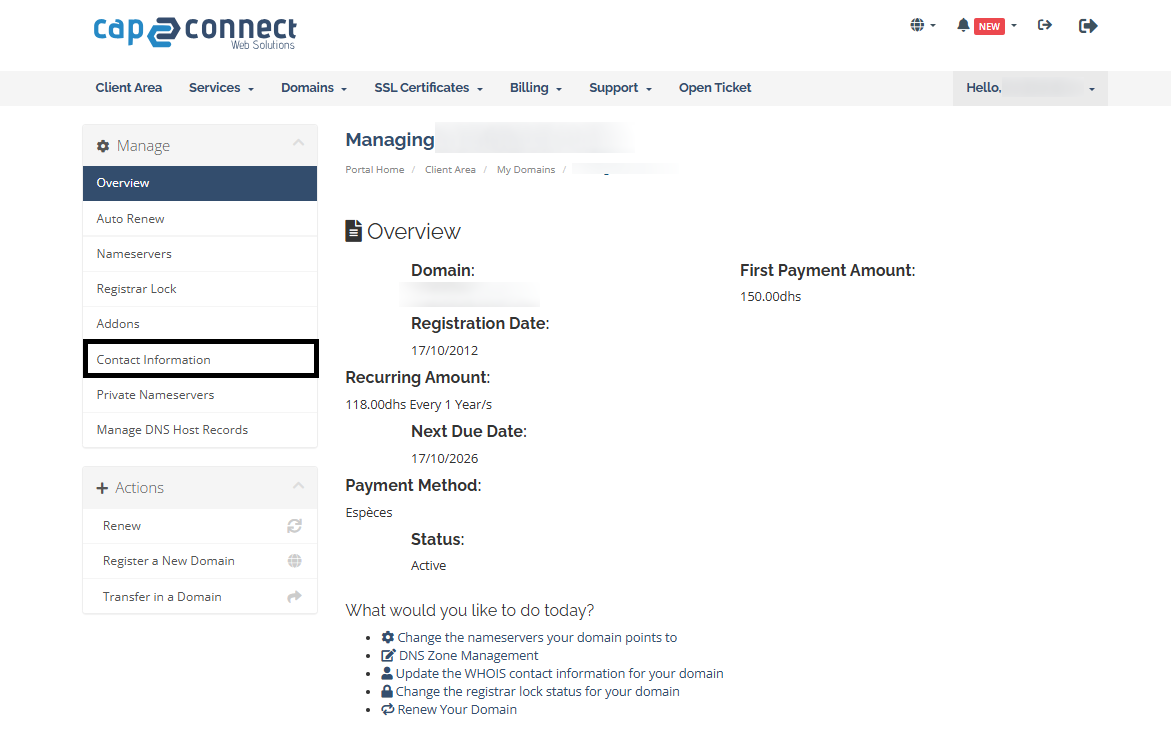
Refer to this guide for detailed steps: How to Update Domain Owner Information
After the ownership details have been accurately updated:
-
The current owner can then open a ticket requesting the domain transfer.
-
The registrar will handle the transfer internally after validating both parties’ requests.
-
No additional external documentation is typically required.
Country-Code TLDs (e.g., .MA)
-
Some registries require official forms or proof of ownership change.
-
For .MA domains, the ANRT (Agence Nationale de Réglementation des Télécommunications) mandates that a specific official transfer form be completed and signed by both the current and new holder.
-
Supporting documents (such as company registration certificates or ID) may also be required.
Note: This process is subject to a transfer fee, as it involves administrative validation by both the registrar and the registry authority.
Case 2: Transfer Between Accounts Without Owner Change
If you are transferring a domain between two accounts under the same owner (e.g., to reorganize or consolidate domain portfolios), the process is simpler:
-
No ownership verification or documentation is required.
-
Only both account holders (same owner) must confirm the transfer.
Transfer Method (Step-by-Step)
The following steps apply to transfers between accounts under Cap Connect, regardless of whether ownership changes or not.
Step 1: Connect to the Client Area
Log in to your client area
Step 2: Open a Support Ticket

Create a new support ticket requesting the domain transfer.
Include the following details:
-
The domain name you wish to transfer.
-
The email address of the recipient’s account.
Step 3: Verify Recipient Account
The recipient account must already exist before the transfer can proceed.
If the recipient has not yet created an account, provide them with the registration link.
Step 4: Recipient Confirmation
The recipient must also open a ticket from their own account to confirm their willingness to accept the domain transfer.
Their confirmation should clearly mention:
“I confirm that I am the owner of account [email@example.com] and accept the transfer of the domain [example.com] to my account.”
Step 5: Registrar Support Validation
Once both requests are received and validated, the support team will handle the rest of the process internally.
You will be notified once the transfer is completed.